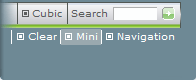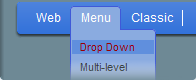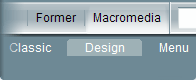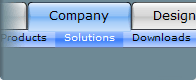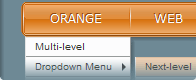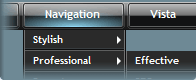


Web menu Horizontal menu

Vista navigation bar for Dreamweaver

vista iconFirst impression. Web users form first impressions of web pages in as little as 50 milliseconds (1/20th of a second), according to the latest research. In the blink of an eye, web surfers make nearly instantaneous judgments of a web site's "visual appeal".
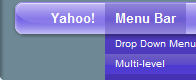
You get only one chance to create the first impression, so make it count. A clean, professional, and fast-loading drop down menu can ensure that your visitor's first impression will be a good one. This Dreamweaver extension provides you with a horizontal, professionally designed navigation bar.


Now the menu is search engine friendly!
The main disadvantage of flash navigation is now eliminated!

Set up navigation as ordinary HTML links. The flash menu file reads these links and draws the visually appealing Vista navigation bar. Everything is easier, more convenient and compact. Any search engine can read this navigation and index all the links.

What's the difference?

The free version is a fully functional web menu with the first button label "f-source.com". You can download the extension and test all menu features in action. However, you can change the first button only when you buy the menu.

If you buy the menu, you get full version along with our support and assistance. You can get all updates and future versions of the menu extension for free. We can even make a personal upgrade at your request (if you buy multidomain version). Your website can be listed in the "Vista menu users".

How to insert the menu?

Don't forget to disable the Active Content Converter first.

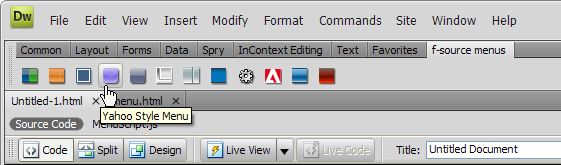
1) Top menu "Insert" ==> "Media" ==> "Vista menu"

Vista menu

2) Type a file name in the pop up dialog window "Save flash element", for example "menu.swf".

play flash menu 3) Now you can check the appearance of the Vista menu by pressing the "Play" button in your " Property inspector" (Ctrl + F3). The menu will work with default navigation settings. Test in browser,press F12(Opt+F12 on Mac OSX) to check your navigation settins. To avoid mistakes test your page in browser each time you make changes in the menu code.


The height of the flash object must be equal to the main menu width. There is no need to set it according to submenus height! The height of the flash object will change automatically when the submenu drops in a browser.

Menu Configuration.

1) The flash object appears in your document window in "Design view". You need to set the flash object width according to the real menu width (which appears in a browser) by dragging the sizing handles. flash object

2) All parameters of the menu appearance can be configured in "Tag Inspector" (Click on Flash Object, then F9).

tag inspector

- _mainButtonHeight - height of main navigation bar.
- _mainButtonTextColor - color of text of main nav bar.
- _mainButWidthExt - extended width of each main button.
- _mainFont - type of font for main buttons.
- _mainFontSize - font size of main navigation bar.
- _mainHighlightColor - main button highlight color.
- _menuColor - color of main navigation buttons.
- _subButtonHeight - height of sub buttons.
- _subButtonTextColor - text color of main buttons.
- _subFont - type of font of sub buttons.
- _subFontSize - font size of sub buttons.
- _subMenuColor - color of sub menu buttons.
- _subShowSpeed - speed of sub menu appearance.
- _bg_Pic_URL - path to the image file, if you want to place a picture under the menu.
- clickSoundURL - path to the mp3 file, if you want to make some sound when mouse clicks on menu .
- mainSoundURL - path to the mp3 file, if you want to make some sound when mouse gets over main buttons .
- stretch_width_to - stretch the menu bar to particular width (in pixels).
- subSoundURL - path to the mp3 file, if you want to make some sound when mouse gets over sub buttons .
- xml_Path - type here the path to XML file with navigation settings, if you prefer XML (cut from a page the DIV with id='menu' and paste it in the XML file).

Setting up the navigation.

Switch to the "Code View" and find the DIV id="menu". Each line of the DIV code represent a button. Edit links and button labels right here. The menu combine cool Flash navigation with standard HTML links, so your page always remains accessible to search engines - while your site visitors see nothing but Flash brilliance. For you convenience each menu provided with the Navigation Guide. Press Ctrl+Shift+F to open it.
web menu navigation guide Add, rename and move the code lines. To check yourself press F12(Opt+F12 on Mac OSX).
(When you press "Play" button the menu appears with default navigation settings.)

Add the target attribute if you need to set new window or specific frame name as a target for a link.

< div><a href='http://...' target='_blank'>Button</a>< /div>
  • _self - specifies the current frame in the current window (the menu use it by default).
  • _blank - specifies a new window.
  • _parent - specifies the parent of the current frame.
  • _top - specifies the top-level frame in the current window.

If you want to make a button text bold change the bold caption tag to &lt;b&gt;, so the caption <b>Button1</b> should be like this: &lt;b&gt; Button1 &lt:/b&gt;
< div><a href='http://...'>&lt;b&gt;Button&lt;/b&gt;</a>< /div>

You can keep navigation settings in one XML file.

Cut the DIV id='menu' from the page and paste it in XML file. This file is an ordinary text file with .xml extension. It must contain nothing but the DIV id='menu'.
Set a path to your XML in the Tag Inspector.
The parameter xml_Path can be relative (navigation.xml) or absolute
(http://www.yourDomain.com/navigation.xml).

Read detailed instructions here

But remember: XML file is not SEO frienldy. It's just one of the ways to keep all navigation settings in one file. As SEO friendly alternative we recommend to use "Library Item" or "Dreamweaver templates".

Learn how to make a Library item

Setting up the search feature.

Use parameter _showSearchField (Yes/No) to show/hide the search field.

You can use any search script with GET parameters, any public search engine for example,
Google:
"http://www.google.com/search?q=" - google search in Web
"http://www.google.com/search?sitesearch=yourDomainName%26q=" - search on your web site
or Yahoo:
"http://search.yahoo.com/search?p=" - Yahoo search in Web.

There is only one rule for any search engine: put the search query parameter to the end of the link ("http://www.someSearchScript?query=") the search request will be added to the end of the link, for example: searching of "flash menu" ("http://www.someSearchScript?query=flash menu")
Example of the button code:

<div><a href='http://www.someSearchScript?query='>SEARCH</a></div>

Advanced settings. (Custom Javascript)

A menu button can call any javascript function from a page. Use the link target 'callJSF'

<div><a href='http://...' target='callJSF'>Button3</a></div>
<div><a href='firstURL' target='callJSF'>Button1</a></div>
it will call the function JSF from the page: (located in the DIV id="f-source-menu")
function JSF(url){
   if(url=="firstURL") alert("First button is pressed");
   if(url=="secondURL")alert("Second button is pressed");
}
the function will get in a pressed button link, so it can be used to identify which button is pressed. Here you can insert any code you need, for example the Google Analytics Tracking Code - urchinTracker('url') or AJAX functions.

That's all. Now you can see your results.

vista nav bar

Still have questions?

Ask your questions right now. We're ready to assist and help our customers.

Click here to contact us